Table of Contents
Toggle
What Is an Email Automation Workflow?
For example, when someone subscribes to your newsletter, a workflow can:
- Send a welcome email immediately.
- Wait two days.
- Send a helpful introduction email.
- Wait three days.
- Send another email with relevant content.
- Stop the workflow when the sequence is complete.
Triggers: Events that start or continue a workflow.
Conditions: Rules that determine which path a contact should follow.
Actions: Tasks the workflow performs, such as sending an email or waiting.
Together, these components create an automated customer journey.
Why Businesses Need Email Automation
Sending emails manually may work for a small list, but it becomes difficult as the audience grows.
Email automation helps businesses:
Save Time on Repetitive Tasks
Welcome emails, purchase follow-ups, birthday wishes, and lead nurturing messages can be automated
instead of sent manuall
Communicate at the Right Time
A message sent immediately after an action is often more useful than a generic email sent days later.
Improve Customer Engagement
Create Consistent Communication
Automation ensures that every customer receives the intended message and follow-up sequence.
Reduce Missed Opportunities
Without automation, businesses may forget to follow up with a new lead, remind a customer about an
abandoned cart, or reconnect with an inactive subscriber.
Email automation turns these opportunities into repeatable processes.
Emailidea Workflows: Start with Ready-Made Templates
Creating an automation from scratch is not always necessary.
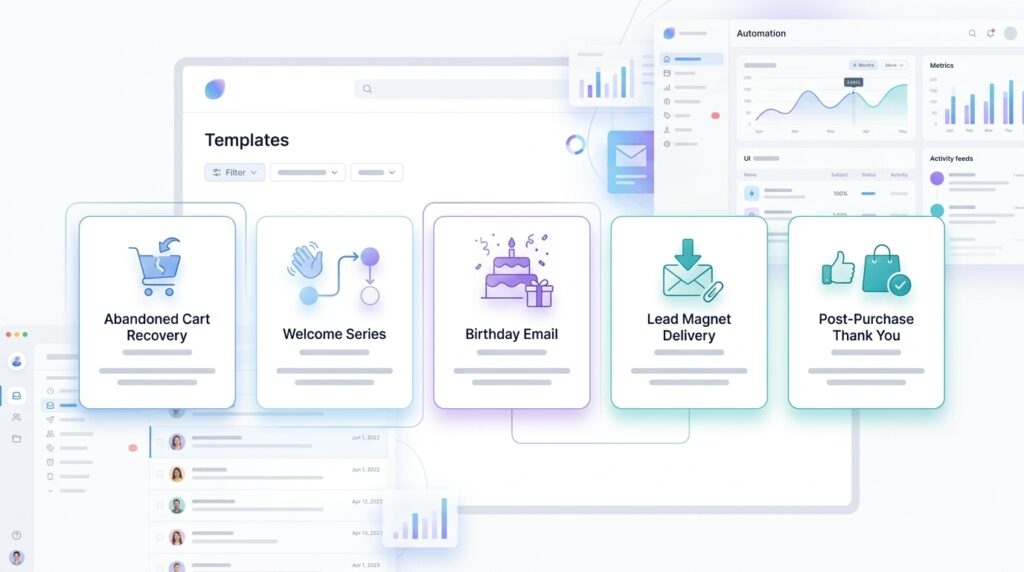
Emailidea includes a Workflows library with ready-made templates for common business use cases. These
templates help businesses start quickly instead of designing every workflow from the beginning.
Examples include:
Abandoned Cart Recovery
A typical workflow may send:
- An initial cart reminder.
- A follow-up after a delay.
- A final reminder or incentive.
Post-Purchase Thank You
Send a thank-you email after a customer completes a purchase.
This workflow can also be extended with product information, review requests, or additional customer-care
messages.
Birthday Wish
Lead Magnet Delivery
This creates a smooth experience for new leads and reduces manual follow-up.
Welcome Series
A welcome series may include:
- A welcome message.
- Information about your products or services.
- Helpful resources.
- A special offer.
- An invitation to engage further.
Build Your Own Workflow with a Drag-and-Drop Editor
The editor includes three important categories:
- Triggers
- Conditions
- Actions
This makes it easier for marketers and business teams to create workflows without depending on
developers for every small change.
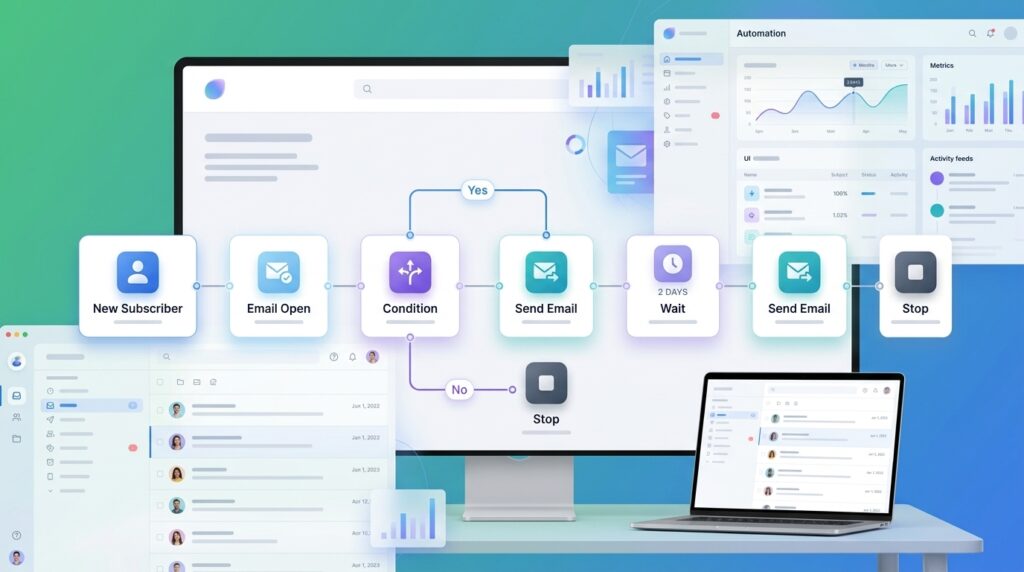
Triggers: What Starts a Workflow?
Triggers are the events that initiate an automation or move a contact into a workflow.
Emailidea supports several trigger components:
New Subscriber
Example:
Tag Added
Example:
A contact receives the tag Interested-in-CRM → Send CRM-related educational content.
Tags can help businesses organize contacts and create more relevant communication.
Campaign Sent
Example:
Email Open
Example
Birthday
Example:
Anniversary
Example:
Purchase
Example
Hard Bounce Alert
Example:
Spam Alert
Example:
These triggers allow businesses to build automations around both customer activity and email
engagement events.
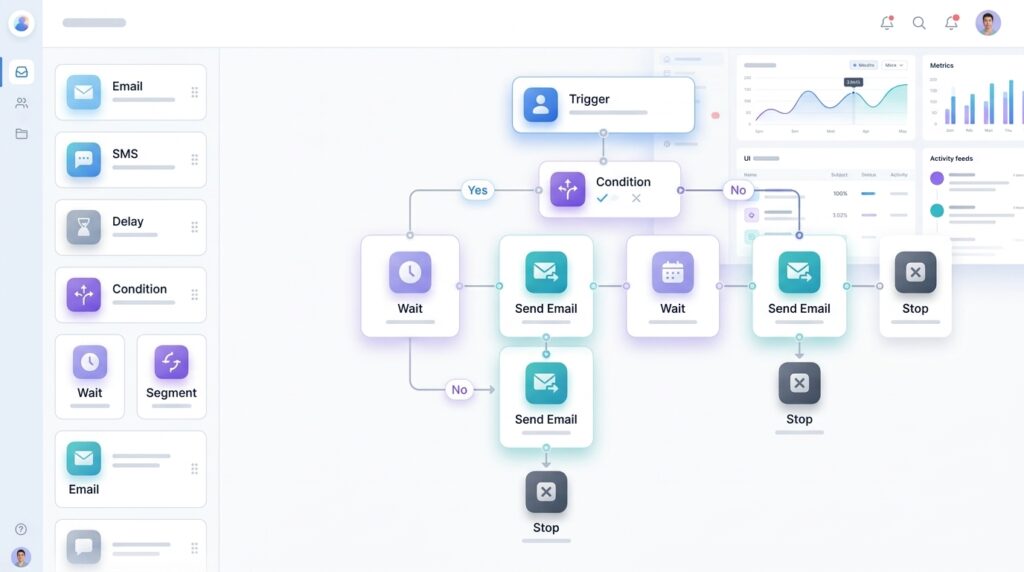
Conditions: Create Different Paths with If/Else Logic
who has purchased may need a different journey from someone who has only shown interest.
Emailidea’s Conditions component provides if/else logic to create different paths inside a workflow. For example:
For example: Workflow: Product Follow-Up
- Send product email.
- Wait two days.
- If the email is opened:
- Send a detailed product guide.
- Else:
- Send a reminder email.
This makes workflows more flexible and personalized.
Instead of sending the same sequence to everyone, businesses can create different experiences based on
the rules they define.
Actions: What Happens Inside a Workflow?
Send Email
Send an email as part of the workflow.
This can be used for welcome messages, follow-ups, reminders, purchase communication, lead nurturing,
and many other use cases.
Wait / Delay
For example:
- Send welcome email.
- Wait two days.
- Send educational email.
- Wait three days.
- Send a follow-up.
Delays help businesses create natural communication sequences instead of sending every message at once.
Stop
Stop the workflow when the automation reaches a defined point.
This is useful when the customer journey is complete or when a workflow should no longer continue.
For example, a workflow may stop after a customer completes a purchase, finishes an onboarding
sequence, or reaches the final follow-up.
Example: Build a Welcome Series
Goal
Workflow
Trigger: New Subscriber
↓
Action: Send Email — Welcome Message
↓
Action: Wait / Delay — 2 Days
↓
Action: Send Email — Helpful Resources
↓
Action: Wait / Delay — 3 Days
↓
Condition: Did the subscriber open the previous email?
- Yes: Send a relevant product or service introduction.
- No: Send a reminder or alternative content.
↓
Action: Stop
This workflow can run automatically for every new subscriber who enters it.
The business only needs to design the workflow once and maintain the content when necessary
Example: Build an Abandoned Cart Recovery Workflow
A basic workflow may look like this:
Trigger: Customer enters an abandoned-cart event
↓
Action: Send Email — Cart Reminder
↓
Action: Wait / Delay — 1 Day
↓
Condition: Has the customer completed the purchase?
Yes: Stop the workflow.
No: Continue to the next step.
↓
Action: Send Email — Second Reminder
↓
Action: Wait / Delay — 2 Days
↓
Action: Send Email — Final Reminder
↓
Action: Stop
The exact workflow can be customized according to the business’s customer journey and communication
strategy.
Execution Logs: Know What Your Workflows Are Doing
Creating a workflow is only one part of automation.
Businesses also need visibility into what happens after the workflow starts.
Emailidea provides Execution Logs so users can monitor workflow activity and understand the output of
each execution.
This helps answer questions such as:
- Which workflows are currently running?
- Which contacts have entered a workflow?
- Which steps have already been completed?
- Which emails were sent?
- Is a workflow waiting at a delay step?
- Did a workflow stop?
- What happened during a particular execution?
Execution logs make automation easier to monitor and troubleshoot.
Instead of treating workflows as a black box, users can review their activity and understand how the
automation is progressing.
This is especially important when businesses run multiple workflows at the same time, such as welcome
series, abandoned-cart recovery, post-purchase follow-ups, and lead nurturing.
Best Practices for Building Effective Email Workflows
1. Start with a Clear Goal
Before creating a workflow, decide what you want it to achieve.
Examples include:
- Welcome new subscribers.
- Deliver a lead magnet.
- Recover abandoned carts.
- Encourage repeat purchases.
- Re-engage inactive contacts.
A clear goal makes it easier to choose the right triggers, conditions, and actions.
2. Keep the Sequence Relevant
Every email should have a purpose.
Avoid adding unnecessary messages just because the workflow allows multiple steps. A shorter, relevant
sequence is often better than a long sequence that overwhelms subscribers.
3. Use Delays Thoughtfully
A welcome email may be sent immediately, while an educational follow-up may be more appropriate after a day or two. Choose delays based on the customer journey and the type of message.
4. Use Conditions Where They Add Value
Use conditions when different customer behaviors require different follow-ups.
5. Monitor Execution Logs
Execution logs can help identify incomplete journeys, unexpected stops, or other issues that need attention.
6. Review and Improve Your Workflows
Review your workflow performance, update email content, adjust timing, and improve the customer journey as you learn more about your audience.
Email Automation and Email Deliverability
Use permission-based lists, maintain accurate subscriber data, authenticate your sending domain, and monitor bounce and spam-related activity.
Emailidea’s workflow components, including Hard Bounce Alert and Spam Alert, can help businesses incorporate these events into their automation strategy. However, automation should always be designed around responsible email communication and the expectations of recipients.
Final Thoughts
Email automation workflows help businesses move from manual email sending to structured, event-based
communication.
With Emailidea, users can choose a ready-made workflow from the Workflows library or create a custom
automation using the drag-and-drop editor.
Triggers such as new subscriber, tag added, email open, birthday, anniversary, purchase, hard bounce alert,
and spam alert help workflows respond to important events.
Conditions provide if/else logic, while actions such as Send Email, Wait / Delay, and Stop control what
happens next.
And with Execution Logs, users can monitor workflow activity and understand what is currently running
and what happened during each execution.
Whether you are building a welcome series, recovering abandoned carts, delivering lead magnets, or
following up after a purchase, email automation makes it easier to deliver timely and consistent
communication at scale.
Start building smarter email workflows with Emailidea and turn repetitive email tasks into
automated customer journeys.

Author: Mayur Rathod
Sharing practical tips and insights on email marketing, this blog explores strategies to craft better emails, boost engagement, and stay ahead of digital trends.